 The Light Company
Evaluate robot policies in the real world.
Prism stages the scene, verifies the setup and records every rollout. Compare models under the same conditions, find where they fail and replay the tests that matter.
One workflow for physical evaluation.
Prism combines a station above the workcell with software for running and reviewing evaluations. The station uses projection to show the target setup and cameras to check the physical scene. The console connects that scene to the policy, recording and result.
Your team can run a repeatable test suite, compare checkpoints and investigate failures without rebuilding the context of each trial by hand.
Stage. Verify. Run. Review.
- Stage the scene
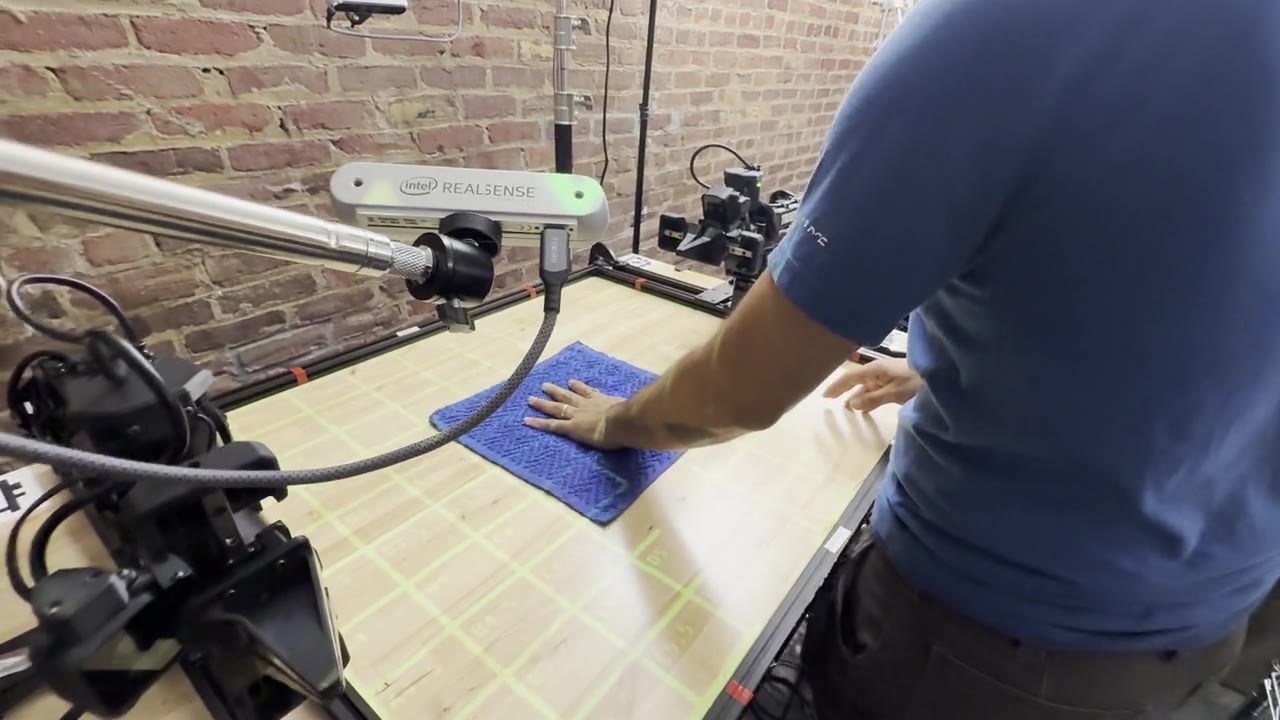
- Choose a test condition. Prism projects object positions and placement guidance onto the work surface so an operator can prepare the scene.
- Verify the setup
- Check the camera observation against the target. Review placement differences and missing objects before accepting the rollout.
- Run the policy
- Execute the task with your robot and policy. Keep the condition, checkpoint and recording connected to the episode.
- Review the result
- Score each step against the task rubric. Inspect the evidence, flag abnormal runs and keep notes and corrections with the result.
- Repeat the test
- Return to a saved condition, stage it again and compare the next run. Use the same cases to check whether a new checkpoint improved.
See the complete evaluation workflow.
Git for your physical space.
Save a scene as a versioned condition. Change an object, its position or the surrounding setup. Keep the original, compare the revisions and return to either one for another evaluation.
Scene history connects the intended setup, observed state and resulting episodes. When a result changes, your team can inspect both the policy version and the physical conditions behind it.
Replay turns a saved condition back into staging guidance. The operator restores the objects and Prism checks the setup before the next run.
Find the conditions behind the score.
Change position, orientation, clutter, objects or lighting, then compare outcomes across the tested conditions. A capability map shows where the policy succeeds, where it fails and where you need more trials.
Inspect task-level results, compare checkpoints and open the episodes behind a weak region. Keep trial counts and untested conditions visible so a strong average does not hide a recurring failure.
The benchmark workspace brings rankings, model comparison, capability maps and trial records into one view.
Use the workcell you already have.
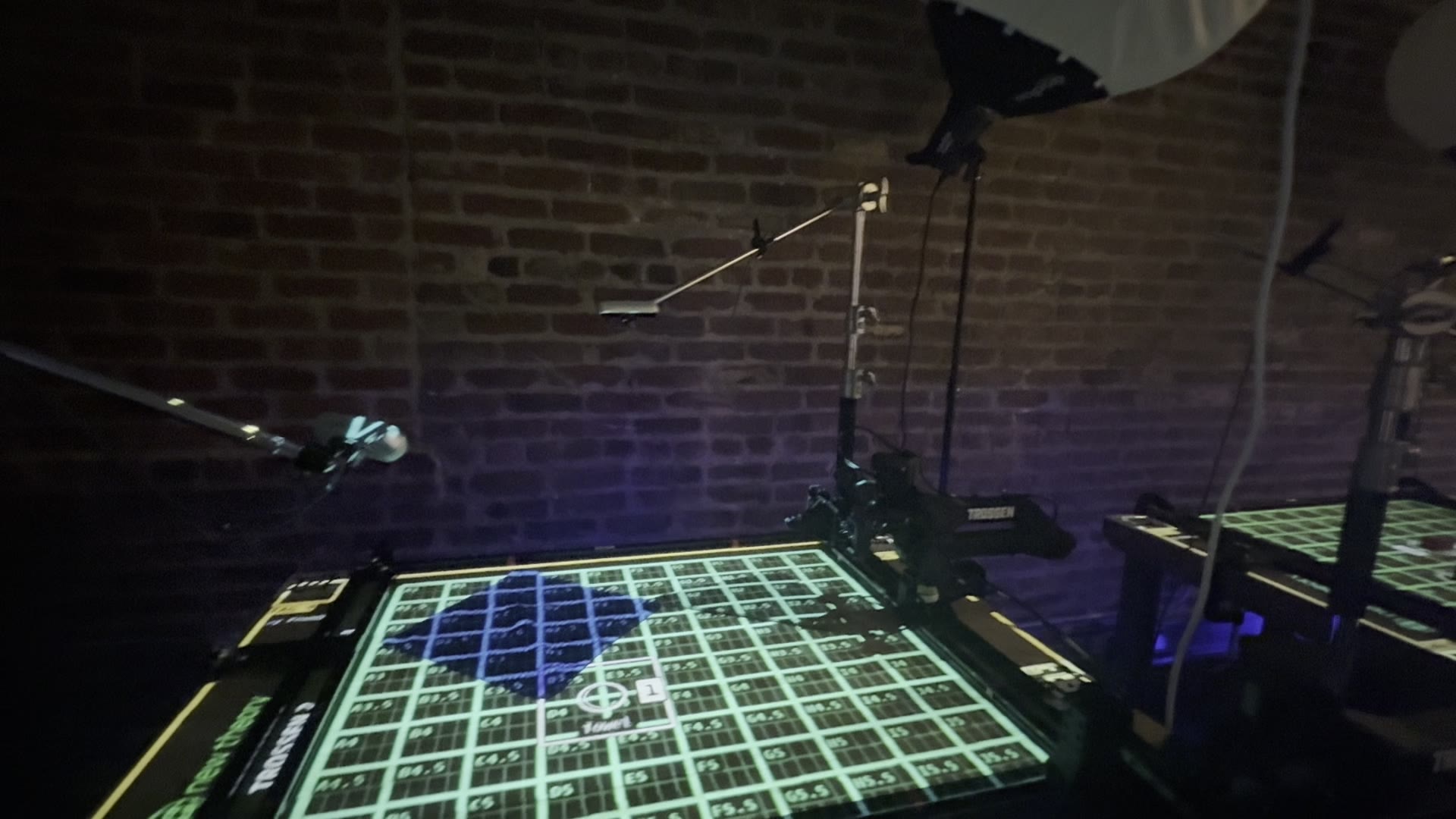
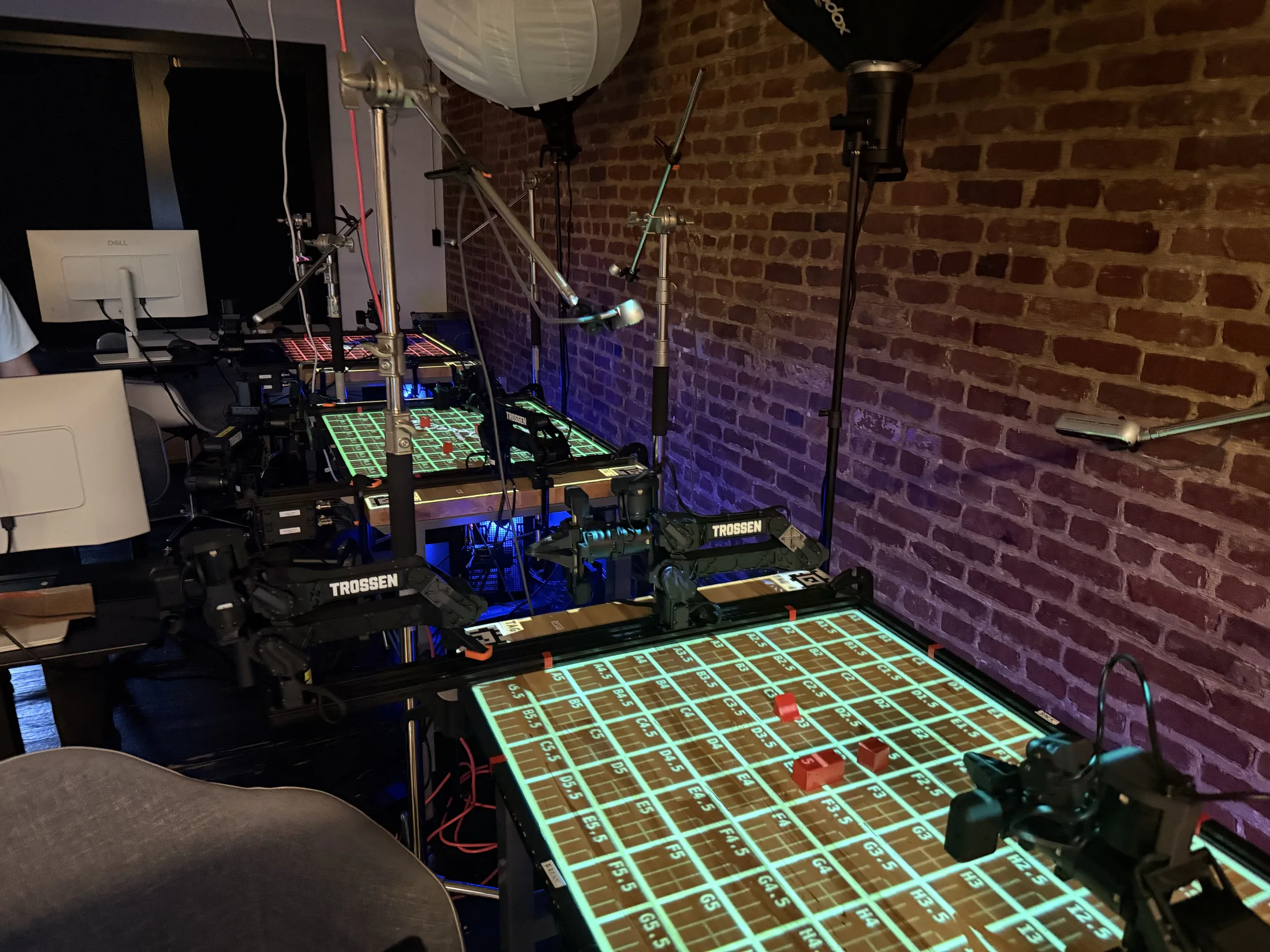
A Prism station brings together projection, cameras and local compute above the workspace. It guides the person preparing the scene while the robot runs through its existing control system.
Set up the station around the robot's reach, the objects and the camera view. Define the placement tolerances and task rules, then connect the evaluation workflow your team uses.
Manage repeated conditions across operators and stations. Keep the scene definition, calibration reference and run context attached to the record so comparisons stay understandable as the lab grows.
Run the lab from one workspace.
Define tasks and scoring rubrics, assign evaluations to operators and compatible stations, and manage the queue across the lab. Each task can include multiple object placements, step-level scoring conditions and a success threshold.
Model presets keep the checkpoint, inference settings and relevant training context together. Evaluation definitions retain the task and model configuration so the comparison stays traceable.
Bring your existing test library.
Import task and placement definitions from Notion or CSV, or connect an existing system through the connector API. Assign the resulting tests to stations and keep new imports in the library's history.
Export results as CSV and save reports for the team. Compare models by task success, progress through the task and execution time, then open the runs behind the result.
Every result has a record.
Open a run to inspect its camera recording, 3D telemetry, placement and step-by-step scores. Keep notes and attachments with the episode. Review flagged runs separately and retain the reason a trial was replaced.
Use those records to investigate a failure, reproduce a regression or share a comparison with another researcher. The next person should be able to understand the experiment without asking who set up the table.
Common questions
Is Prism a simulator?
Prism Robotics runs around physical robot workcells. It controls and checks the setup for real-world evaluations, then connects conditions and results in the console.
Who resets the objects?
An operator follows the projected placement guidance. Prism checks the scene against the target before the trial is accepted. The robot continues to use its own control system.
How are rollouts scored?
Prism scores every run automatically. Its vision-language model watches each trial, judges it against your rubric and records the reason with the recording. Your team defines the scoring conditions for each task step and the threshold for success.
How do we get started?
Get started with your robot, task and current evaluation process. We will work through station placement, integrations and the first test suite. You can also register interest in a station.
Bring Prism to your lab
Tell us about your robot, task and evaluation workflow.